

A frame is a page’s grid: which areas exist — header, sidebars, content, footer —, where they sit and how wide they are.
Three things are to be kept apart, and they live in three tabs of the Layout page:
| Question | Where |
|---|---|
| How is the page divided? | Frames — this page |
| What appears in which area, and which page type takes which frame? | Components, see 4.7 |
| What does it look like together? | Overview, same place |
Quartz brings three frames — Default, Full width, Minimal. Here you build your own.
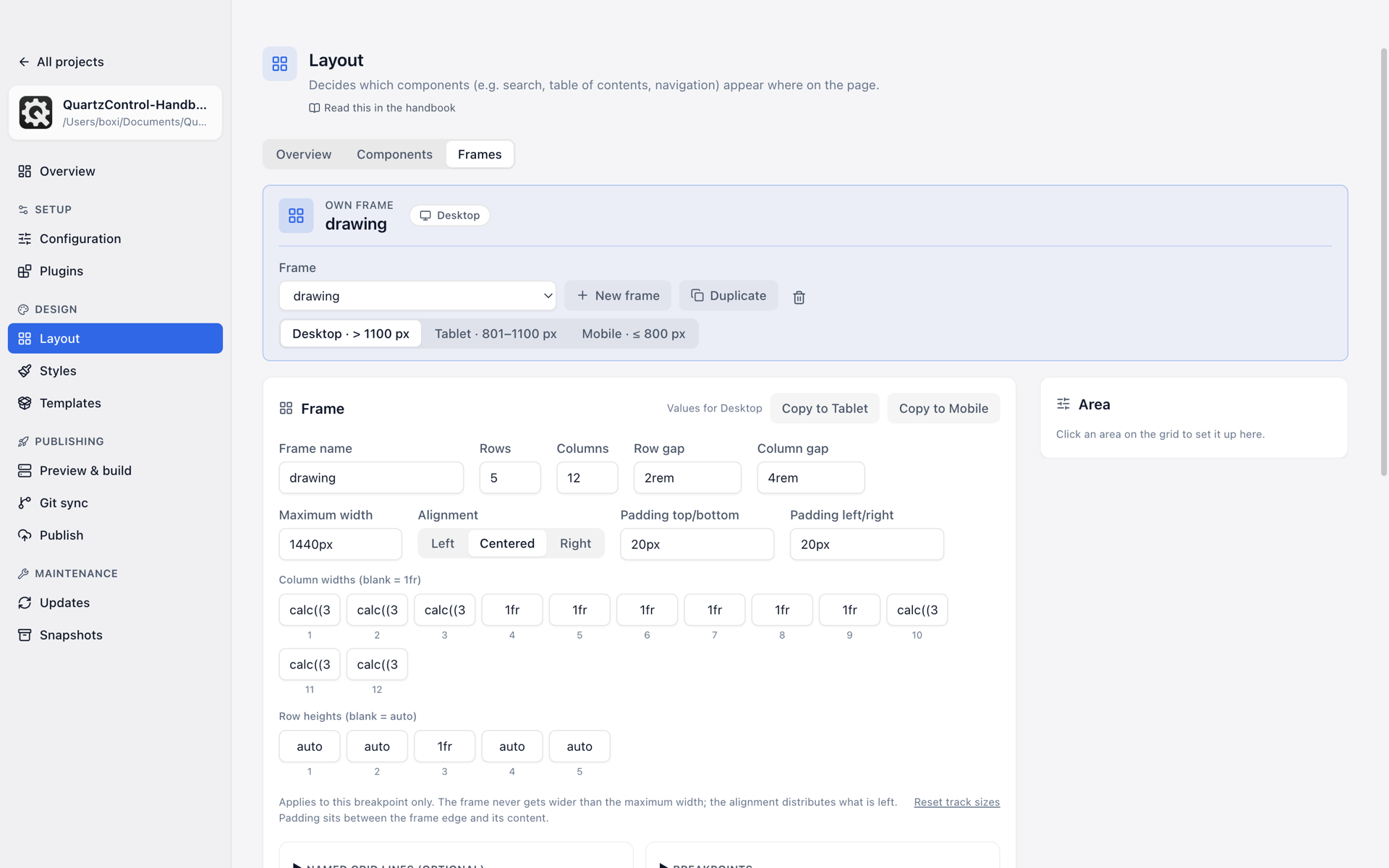
The Frames tab: frame and width at the top, the measures below, on the right the settings of the chosen area.
Choosing and creating a frame
At the top is a picker with all your own frames and the Quartz default (view only). The default
shows how Quartz divides a page as long as no frame of your own is chosen, with the measures from
the project’s variables.scss and base.scss. It cannot be changed, but Customize as your own
frame makes a copy of it that can.
Beside it New frame for an empty one, Duplicate for a copy of the chosen one, and the bin to delete. Page types that used a deleted frame fall back to the default.
Three widths
Every frame of your own is built for three screen widths: Desktop, Tablet and Mobile. The switch at the top names for each width from how many pixels it applies, and each has a grid of its own. Copy to Tablet and Copy to Mobile take the grid of the width shown over into another.
Each width has the card Frame and its measures: rows and columns with their widths and heights, the gaps between them, a maximum width, an alignment and paddings. Two subtleties about this are stated in the editor:
- Without a maximum width the frame uses the full window width.
- The alignment only takes effect with a maximum width — before that there is nothing to distribute.
Dragging areas onto the grid
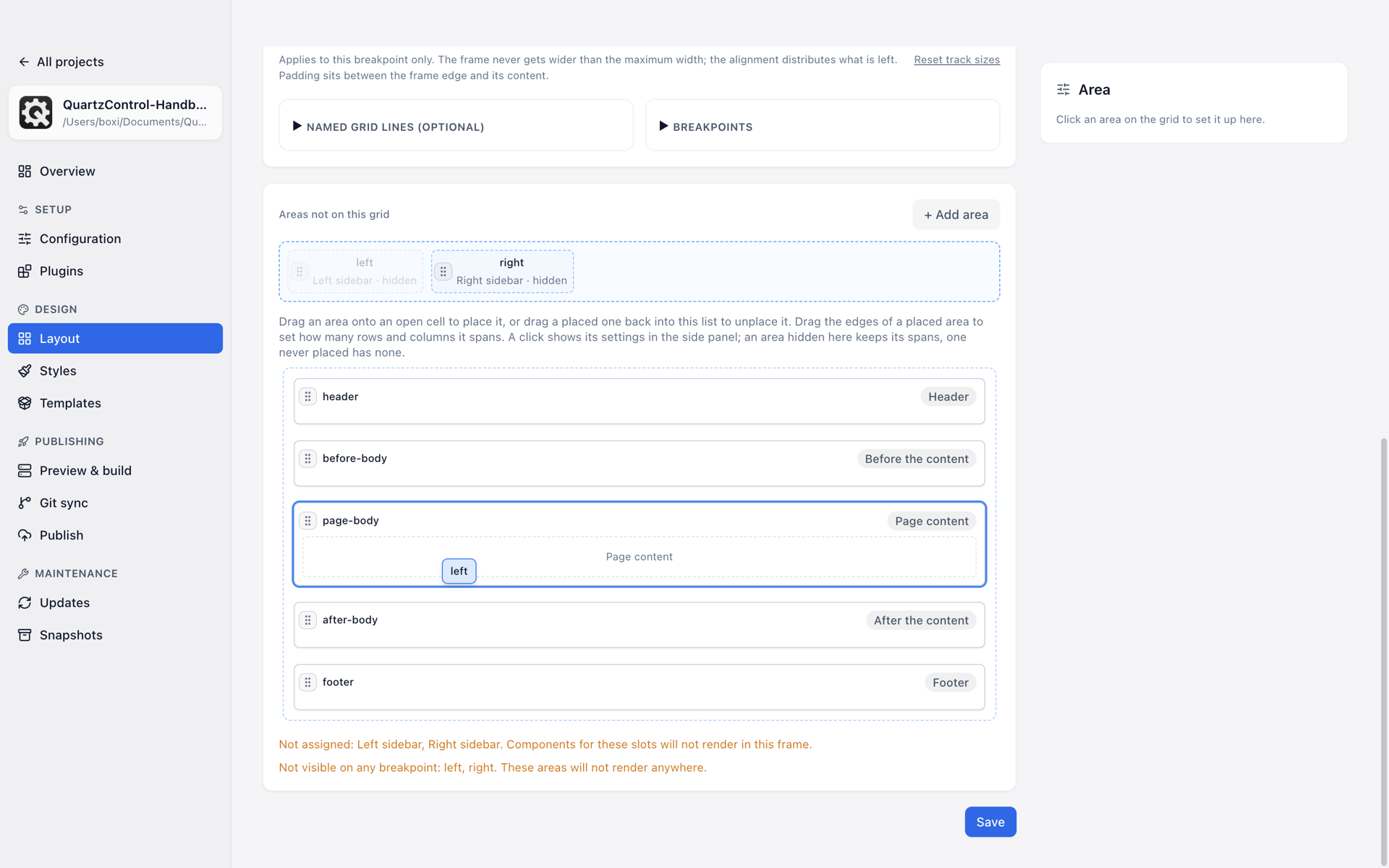
An area is dragged from the list onto a cell; it stays behind faded in its place.
Above the grid are the Areas not on this grid. Dragging an area onto an open cell places it; dragging it back into the list unplaces it. Drag the edges of a placed area to set how many rows and columns it spans. If an area would overlap another one, it stays where it was, and QuartzControl says so.
This works with the keyboard too: pick up with Space or Enter, move with the arrow keys, drop with Space or Enter, cancel with Escape. QuartzControl announces what happens.
A click on an area shows its settings on the right:
- Area name — what it is called in the frame.
- Slot — which position of the page it shows: header, one of the sidebars, before the content, the page body, after the content, footer, or None (empty). Two areas with the same slot show the same components, so twice; the editor says so.
- Area of its own — the area then shows only the components you explicitly drag here on the Components tab, not everything else the slot holds. That is how a sidebar is split into two areas.
- Row span and Column span, plus Visible on the width shown: a hidden area keeps its spans and can be shown on another width.
- Remove from grid and Remove area.
+ Add area creates another one. Seven areas match the seven positions of the page; if you need more, give the additional ones a slot and make them areas of their own.
Below the grid the editor collects what would show up when building: positions no area shows (their components do not appear in this frame), and areas that are visible on no width, overlap or reach beyond the grid.
Changes show up in the editor’s preview at once — but they are only saved with Save.
Breakpoints
From which window width the frame switches to Tablet or Mobile is set here since 1.1, in the collapsible section Breakpoints below the measures. The default is 1200 / 800 — the same values Quartz uses.
Two limits QuartzControl names: the values apply to this project’s own frames. Quartz’s built-in frames and community themes bring their own values and do not follow these.
Naming lines
The section Named grid lines (optional) gives names to the lines between columns and rows. The editor does not need them — areas are placed by dragging. They are only useful if you want to address those lines later from custom CSS.
Frames a plugin brings
Some plugins bring a frame of their own for their own kind of page. For those the Layout page shows no preview, and that is meant honestly: how such a frame is built only the plugin itself knows.
Where frames turn up elsewhere
Quartz registers every frame of your own as a plugin — that is why they also appear in the plugin list. They are still set up here; the list there says so too.