

Quartz consists of plugins. Almost everything visible on the finished page comes from one: the explorer on the left, the search, the table of contents, the backlinks, the graph.
In the sidebar the area sits under Setup. In this handbook it is here, because it belongs to the design: switching a plugin on or off changes how the site looks.
The page has five tabs: Installed, three for QuartzControl’s own plugins — Navigations, Additional content, Languages — and the Marketplace.
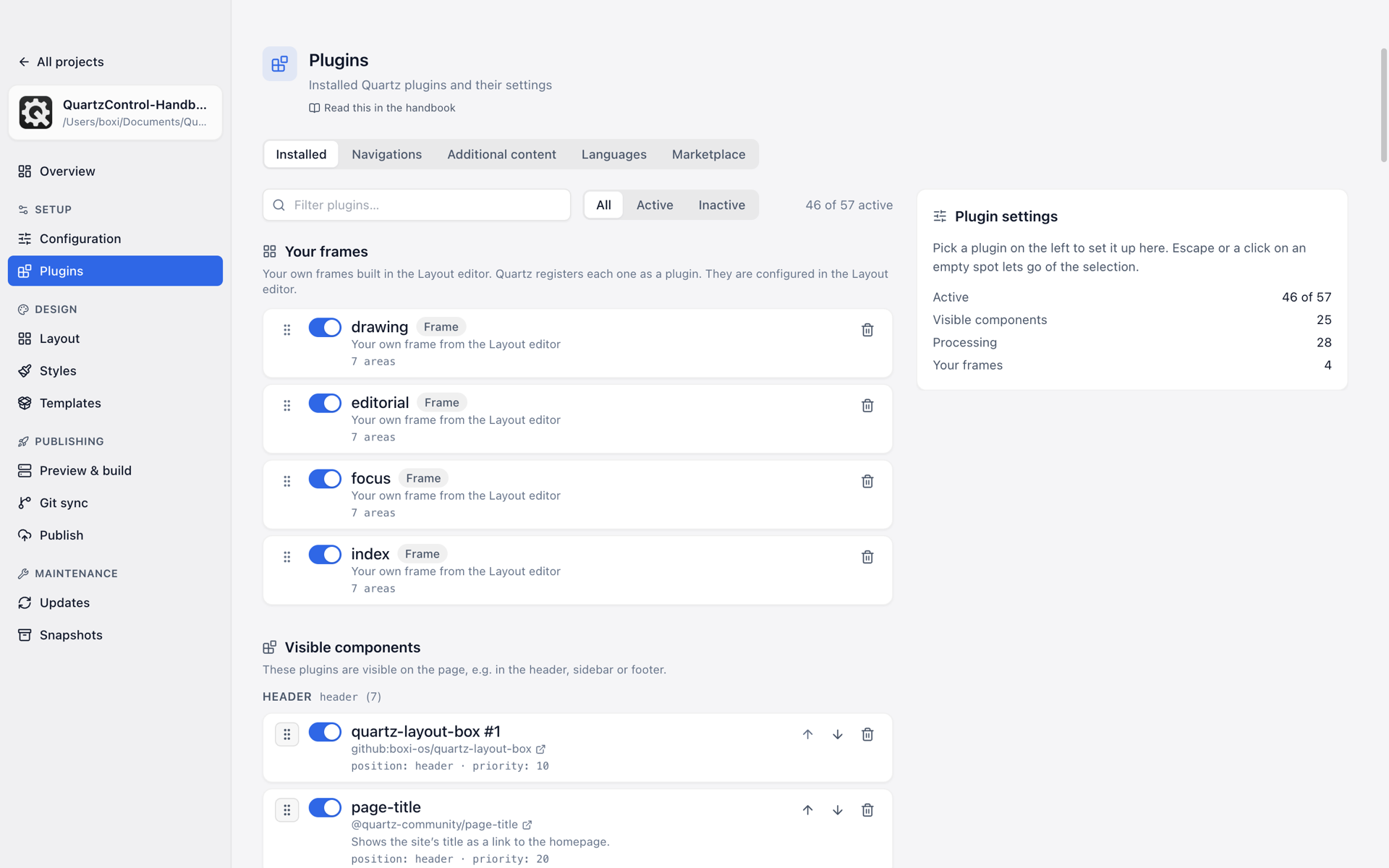
The installed plugins, grouped by effect and position.
Installed
The list is split into groups, and the split answers the first question you have about an unknown plugin — can you see that?
Your frames come first when there are any. They are the grids built in the layout editor: Quartz registers each as a plugin — which is why they are here — but they are configured there.
Visible components, ordered by their position on the page: header, left and right sidebar and so on. Where they appear is decided by the layout editor, not by this list.
Processing. They change the content behind the scenes — formatting, links, images — and are not visible themselves. Among them, separated, the page types: plugins that produce a kind of page of their own, tag pages for instance.
At the top, All / Active / Inactive filters, and the switch on every row turns a plugin on or off.
Configuring a plugin
A click on a row shows the plugin’s panel on the right: name, origin, description, the switch Plugin enabled, the placement with Show on the stage, and below that the options. The panel says itself how it saves:
Saves without a button: switches right away, text fields when you leave them.
The form
The options are shown as a form, not as a list of keys. QuartzControl learns what a plugin can do from the plugin itself: from a description of its options the plugin brings along, otherwise from its types, otherwise from its default values. From that, each option gets the fitting control — a switch, a choice, a text field, a list you can extend and reorder, or a mapping of keys to values.
- default and changed. An option you have not touched shows the plugin’s default. A changed one carries changed, and the arrow beside it resets it to the default. A group says in its header how many of its options are changed.
- Groups. Many options sit in collapsed groups. What is hardly ever needed is under Rarely needed. From eight options on there is a search field above; it narrows the form down to the matches, and the groups keep their titles.
- Conditions. Some options only apply when another one has a particular value. While the condition does not hold, the option keeps its place, greyed out, with something like Only applies when “variant” is set to …. below it. So the form looks the same whatever you choose above, and a value is kept when you switch back.
- Unknown keys. If the configuration holds a key the plugin does not describe, it still appears as a field, under Unknown keys. If the plugin does not describe all of its options, Add another option creates one yourself.
- What QuartzControl does not understand becomes a JSON field with a note instead of disappearing.
A cleared field removes the option from the configuration — the plugin then uses its default. Some plugins read “empty” differently from “not set”, though, a heading that should not appear at all for instance. For that, an empty text field offers Set empty: it writes an empty text, the field then shows set to empty, and Reset takes the option out again.
If a plugin does not describe its options at all, QuartzControl says so instead of inventing options: the fields then come from its defaults, and further ones are added by hand.
Sorting
The order in this list is the order in which Quartz runs the plugins, and for processing plugins that can matter. Reordering is done by dragging — with the mouse or with the keyboard, for which every row additionally carries move up and move down.
While a filter or a search is active, reordering is switched off. Otherwise a drag would move the entries you cannot currently see as well.
Removing
Removing a plugin asks first — adding that a snapshot is taken automatically beforehand. The same holds for a frame of your own, where the file additionally disappears from disk.
The own plugins
For the three plugins that belong to QuartzControl, the page has a tab each. All three save right away and show a Preview of the site through the dev server at the bottom; if it is not running, Start preview starts it. Where a navigation or a box stands on the page is set in the layout like any component; Show on the stage jumps there, All options in the plugin list to the form on the Installed tab.
Each tab knows a particular version of its plugin. If another one is installed, it names both and adds: Details may therefore differ.
If the plugin is not installed at all, the tab says that too and points to the marketplace.
Navigations
Every navigation is an entry of its own of quartz-navigations; all of them are listed on the left,
with New navigation, duplicate and bin. A chosen one first shows its variant on the right as
tiles — Tree, Accordion, Side panels, Bar, Dropdown, Mega menu, Tabs, Columns, Select list,
Previous / next —, each with a sentence on what it is meant for. Below that the settings of the
variant, then the remaining options in groups such as Page selection, Hide, Order and On
smartphones. An option that does nothing with the chosen variant carries no effect and names
the variants it works with.
A new navigation gets the position that fits its variant: a bar the header, a tree the left sidebar, Previous / next the place after the content.
Additional content
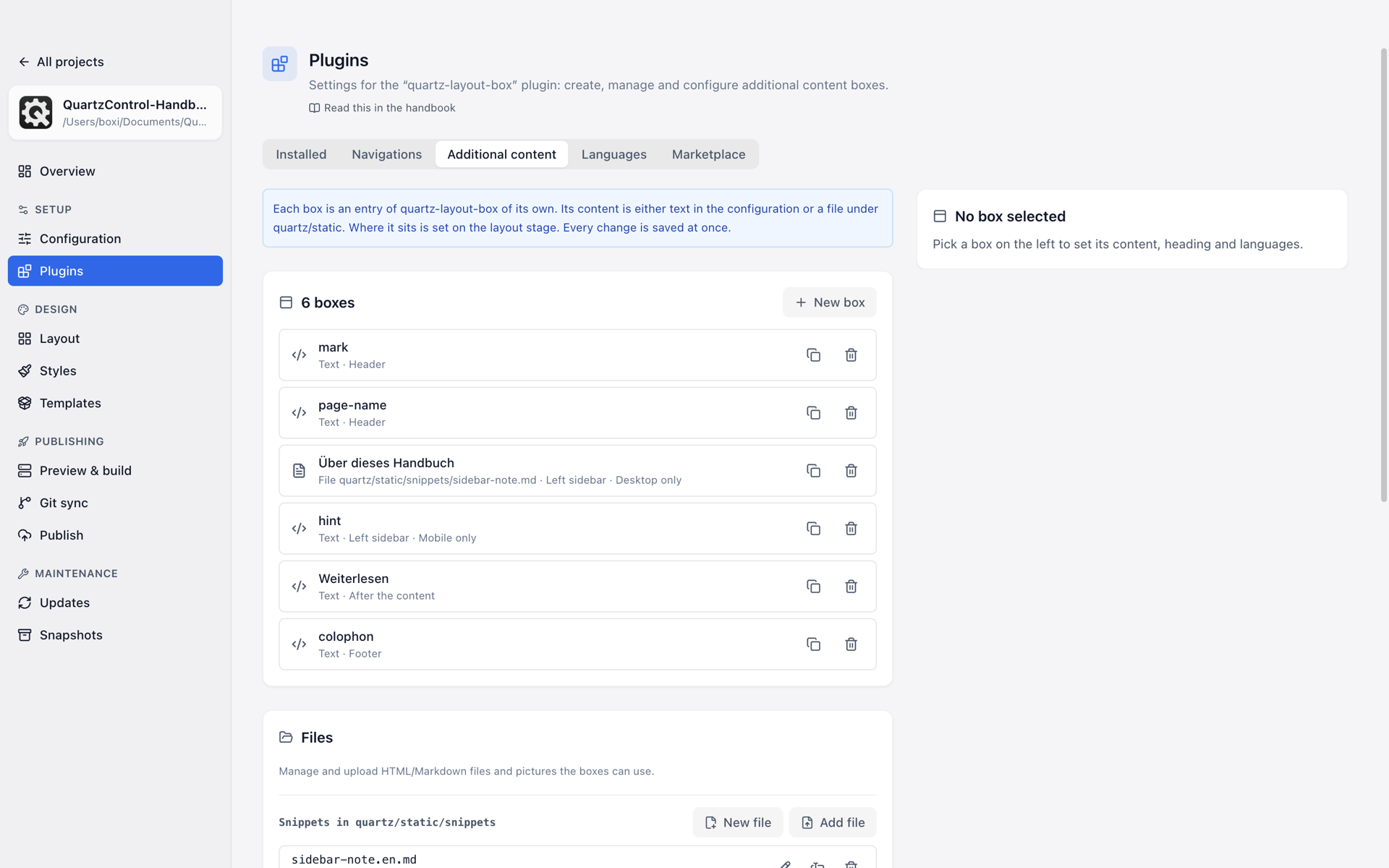
The Additional content tab: the boxes with kind of content and position on the left, the files below.
Every box is an entry of its own of quartz-layout-box: a piece of text, HTML or Markdown at one
place on the page, a note in the sidebar or a colophon in the footer, say. A chosen box has two kinds
of Content:
- Text in the configuration — HTML, written right here.
- File — Markdown or HTML under
quartz/static, a snippet. New, Import… and Edit sit right at the field. A snippet is a file of its own and is saved with Save snippet, not with the “Save” button at the top.
In a snippet and in the box’s text, the site replaces placeholders such as {{title}} or
{{root}} when it builds; the list under Available placeholders inserts one with a click.
Insert image… copies an image to quartz/static/images and sets the reference. An SVG file can
also be inserted as code, so it can be styled with CSS; QuartzControl first removes everything from
it that could run script on every page or load something from outside, and says how much that was.
The card Files below manages the project’s snippets and images: create, add, and for every file which box uses it. The search covers the boxes and their snippets, not the pages, stylesheets or other plugins. The project image is listed there with the path a snippet includes it by.
Languages
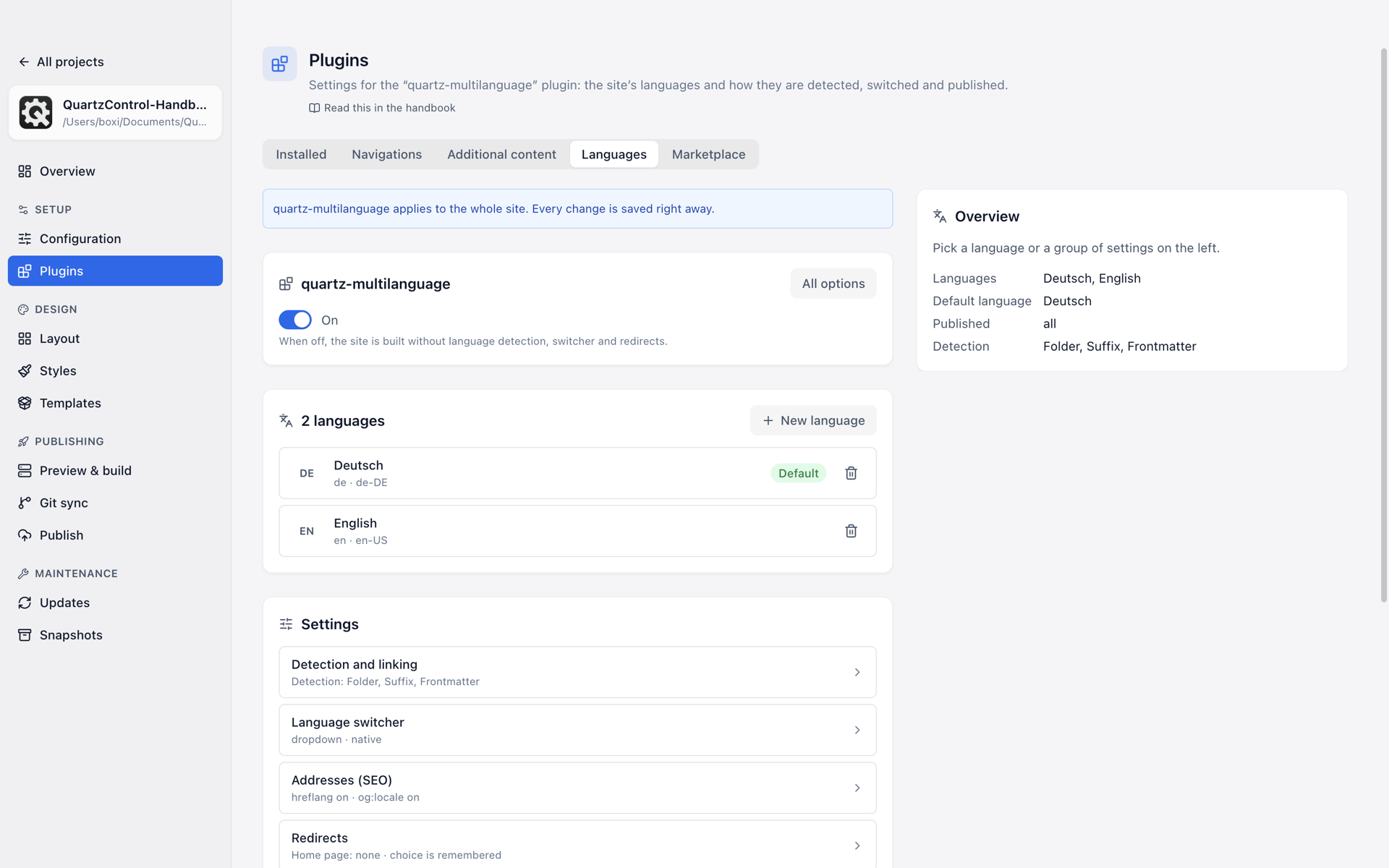
The Languages tab: the languages, below them the areas of the settings, on the right the overview.
quartz-multilanguage applies to the whole site, so there is no list of entries here but one page:
on the left the languages with New language and the default language, below them the
Settings in areas — detection and linking, language switcher, addresses (SEO), redirects,
notices, links and date —, each with a line saying what currently applies. On the right is the
chosen language or area, with nothing chosen an Overview. How to set up a site in two languages
is described in Translations.
Maintenance
The last card on the Installed tab concerns the built files of plugins installed from a source — not what the site can do. Those files do not belong in the repository and are therefore missing on a second machine.
- Restore from quartz.lock.json — fetches them back. That is the button for “freshly cloned, plugins missing”.
- Remove orphaned plugin folders — deletes whatever no configuration points at any more. The configuration itself is left unchanged.
Marketplace
The last tab: the catalogue of the quartz-community organisation, searchable, with the bundled
plugins in it. Plugins from elsewhere are added via owner/repo.
If the catalogue is unreachable — GitHub not answering, or the request limit exhausted — QuartzControl says so and shows only a placeholder. A GitHub token in the settings raises the limit considerably.
A second list holds repositories of the organisation without the “quartz-plugin” marker — among them Quartz itself, shared libraries and forks. Mostly not installable as a plugin; they are there so the search does not stay silent when you look for them.