

The project image sits in the Site tab under Configuration. It does two things at once, and that is the whole trick to it.
In QuartzControl
It marks the project in the list on the start screen. Without an image of its own QuartzControl shows what the site shows: the image the template brought along, and without one the project name’s initial — irrelevant with one project, not with eight.
On the site
The same image becomes the favicon on the next build — the small symbol in the browser tab. Without an image of its own the site gets Quartz’s default icon, or the image of the template the project was created from.
A plugin handles that, and the card says clearly how things stand:
- “The site’s favicon will be generated from this image on the next build.” — all set.
- “The favicon plugin is switched off” — the image stays visible in QuartzControl, the site gets nothing from it.
- “The favicon plugin is not installed” — the same, for the other reason. A link leads straight to the plugins.
Requirements
PNG or JPEG, square is best. The image lands as quartz/static/icon.png in the project — so it
belongs to the project and travels with it into a
repository. Below the image are its dimensions in pixels.
Remove image resets both: QuartzControl and the site show the previous image again — the template’s or, if there was none, the initial and Quartz’s default icon.
In the site header
Below the image sits the switch Show in the site header. It puts the project image into the header of every page, as a link to the home page. It is built with the quartz-layout-box plugin; if the project does not have it, the switch asks whether to install it. QuartzControl takes a snapshot first and saves whatever is still unsaved on the page.
Like every other field on the page, the switch is applied with Save. Where exactly the image sits and in which order next to other components is set afterwards under Layout → Components, as for any plugin. Switching it off removes the image from the header; the plugin stays installed.
A second image for dark mode is optional: Image for dark mode… stores it as
quartz/static/icon-dark.png, and in the dark colour scheme the header then shows it instead of the
light one. The favicon stays with the light image — browsers only show one for it anyway.
Remove dark image deletes the file at once; if the header image is switched on, it has no image in
dark mode until the page is saved.
With a template’s mark
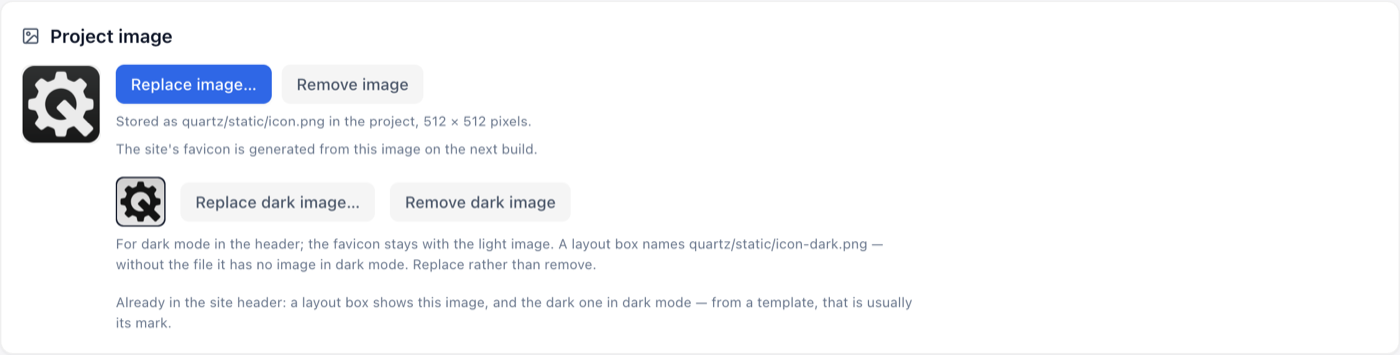
The project image of a project whose template shows its mark as the project image: no switch for the header, “Already in the site header” instead.
QuartzControl’s templates already use the project image for their mark at the top left — icon.png for
light, icon-dark.png for dark. An image of your own therefore replaces the mark there — in
light mode. The dark image stays the template’s until you swap it via Replace dark image…; the
card says so as long as that is the case, and replacing works without choosing a light image
first. The Show in the site header switch is missing: the card says “Already in the site
header”
instead, because a second image beside it would be the same one again. Until you choose your own,
the card says the site shows an image that was not chosen in QuartzControl.
Better replace the dark image than remove it: the mark names icon-dark.png directly, and
without the file it has no image in dark mode — not just until the page is saved.