

Frames say where the areas sit. The tabs Components and Overview say what is in them and on which pages.
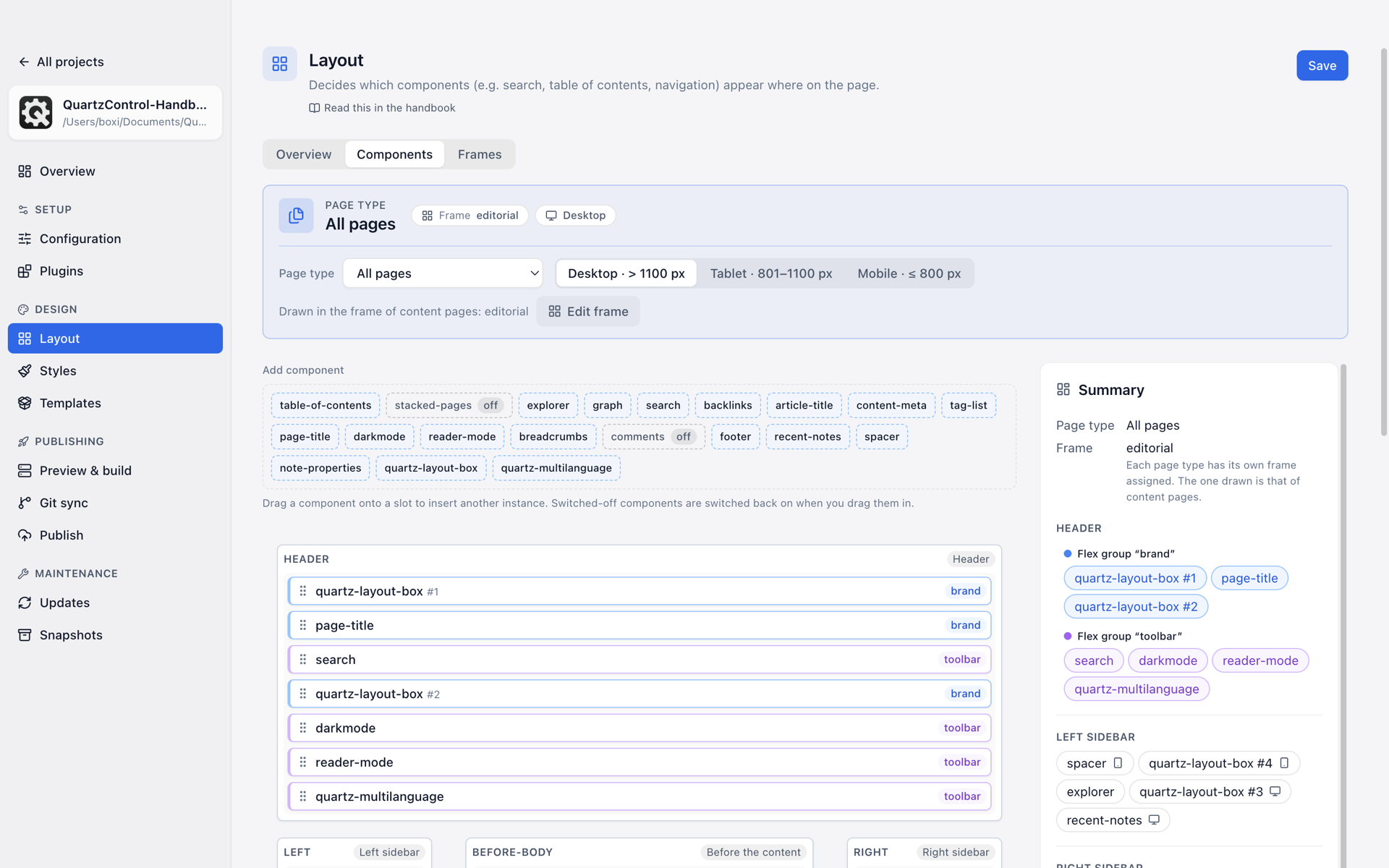
The Components tab: page type and width at the top, below them the tray, the page’s areas and on the right the summary.
Dragging components into areas
The board shows the page’s areas — header, left and right sidebar, before and after the content, footer, and the frame’s own areas —, arranged the way the frame lays them out. Into each area you drag the components that should appear there: explorer, search, table of contents, backlinks, graph, colour-scheme toggle and so on.
Above the board, under Add component, is the tray: all components. Dragging one of them onto an area inserts another instance with settings of its own — that is how the same component stands in two places. The other way round, the tray switches off: a component dragged from the board back into the tray is no longer built and carries off there. Dragged onto an area again, it is switched on again.
Dragging works with the mouse and with the keyboard (Space to pick up, arrow keys to move, Space to drop, Escape to cancel). An empty area says so itself: “Empty: drag here”.
Setting up a component
A click on a placed component shows its settings on the right. With nothing selected the Summary stands there: which frame is drawn and what is in which area.
- Position and Order with Earlier and Later — the same as dragging, only without a mouse.
- Visibility — Always, Desktop only, Mobile only. “Desktop only” applies to tablets too, because Quartz only switches at the mobile threshold.
- Condition — Always, Not on the home page, Only on pages with tags, with backlinks or with a table of contents, or a custom one a plugin brings along.
- Group — see below. Within a group, Base width, Take up free space, May get narrower, Order within the group and Alignment are added.
- Duplicate and Put in the tray. If the plugin brings more than the component, its own page type say, QuartzControl says that the whole plugin is switched off.
- Options — the plugin’s settings, right here.
Flex groups
Without a group, every component stands on its own, one below the other. Components with the same group stand side by side — or one below the other, reversed, wrapping and with a gap. The card Flex groups below the board creates groups and sets them up.
That is the way to a header in which title, search and toggles stand in one row instead of three.
Page types
Quartz distinguishes kinds of pages: Content pages, Folder pages, Tag pages, Canvas pages, Bases pages, Excalidraw pages and the 404 page. The Page type picker at the top first stands on All pages; choose a type, and it can be customized:
- Frame — which grid this page type uses: Default, Full width, Minimal, one of your own, or the one a plugin brings for its page type.
- Hide on … — a component does not appear on pages of this type. A tag page needs no table of contents.
- Clear … — a whole area stays empty on this type; the 404 page may need no sidebar at all.
What you move or set on the right still applies to all pages; only hiding and clearing apply to the chosen type, and the tab says so. A customized type is listed in the picker with (customized), and Remove customization sets it back to “All pages”.
Duplicate components
If the same component is placed more than once, hiding it affects all of its instances. QuartzControl says so, with the count; Quartz cannot separate individual duplicates at this point.
On All pages the board draws the frame of content pages and says so. Edit frame jumps to the Frames tab, to the frame currently drawn.
The overview
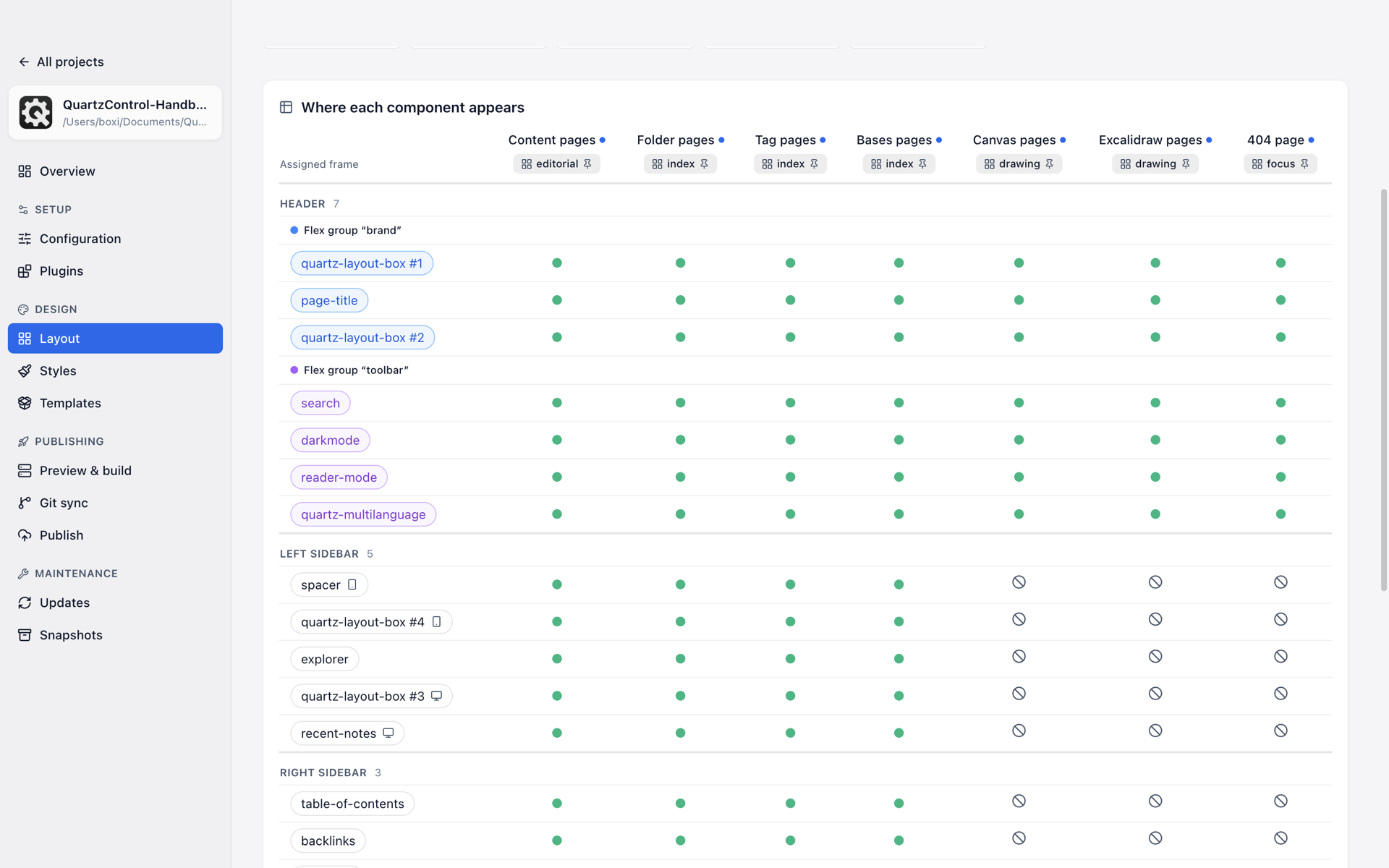
The Overview tab: the figures at the top, below them the table of all components across all page types.
The Overview tab answers the question the board leaves open: what of it actually arrives on which page type. At the top are figures — placed components, those with a condition, switched-off ones, page types that differ, frames of your own —, each unfolding into a list. Below them the table Where each component appears: one row per component, ordered by area and flex group, one column per page type with the frame it uses. Every cell says with a sign whether the component appears there, only on some widths, is hidden, whether its area is cleared or does not occur in the frame at all. Hover over it and it stands there as a sentence.
For a frame a plugin brings, it says “unknown”: how it is built only the plugin knows.